How to Convert M4A Recordings Into Text Fast
Convert m4a recordings into text quickly with a clean workflow for lectures, interviews, voice notes, meetings, and calls. Edit and export with ease today.
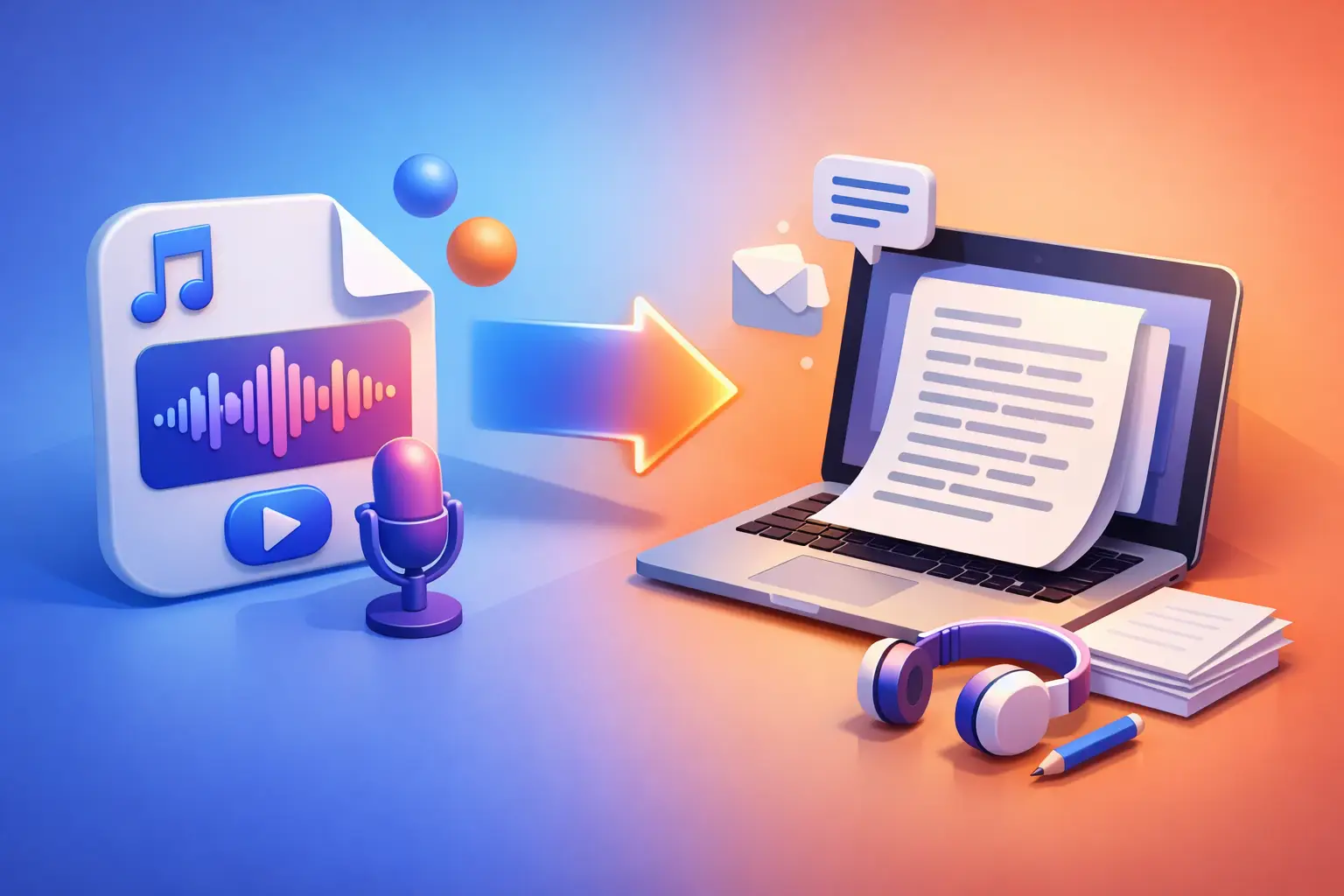
An M4A file is usually not the problem. It is the useful information trapped inside it: a professor’s explanation, a source’s quote, a client decision, or the first version of an idea you recorded while walking. When you convert m4a recordings into text, that audio becomes searchable, editable, and ready to use.
Manual transcription works when a recording is short and the stakes are low. For a 60-minute lecture, an interview with multiple speakers, or a week of voice notes, it becomes a drain on time. A focused transcription workflow gets you to a workable draft quickly, then lets you spend your attention on the parts that actually need judgment.
Why M4A Files Are Worth Transcribing
M4A is a common audio format used by iPhones, Voice Memos, many recording apps, and downloaded audio. It keeps file sizes manageable while preserving enough quality for speech. That makes it practical for everyday recordings, but listening back is still slow.
Text changes what you can do with the recording. A student can search a lecture for a term before an exam. A journalist can pull a quote without replaying an entire interview. A creator can turn a spoken outline into a script. A manager can turn a recorded meeting into follow-up notes.
The goal is not to create a document that looks impressive. The goal is to get usable words out of an audio file with as little friction as possible.
How to Convert M4A Recordings Into Text
The fastest process is simple: choose the file, generate a transcript, review key details, and export the version you need. The quality of each step affects how much cleanup comes later.
Start with the cleanest file available
Use the original M4A file whenever possible. Audio passed through messaging apps or social platforms may be compressed, which can make quiet voices, accents, and overlapping speech harder to recognize.
Before uploading, listen to a short section. You are checking for obvious issues: very low volume, heavy background noise, a microphone rubbing against clothing, or long sections where people talk over each other. You do not need studio-quality audio. But a quick check helps set realistic expectations for the transcript.
If you have several versions of the same recording, use the one made closest to the speaker. A phone on the table in a large room will produce a less clean result than a phone held near the person speaking.
Upload the recording and let transcription do the first pass
A transcription app should accept the file without making you convert it into another format first. Upload the M4A recording, wait for the spoken words to become text, then work from the transcript instead of the audio timeline.
This is where a dedicated tool earns its place. To The Text is built around that direct path: import audio or video, get editable text, and export it. No project boards, team dashboards, or unrelated editing tools standing between the file and the finished transcript.
Processing time depends on the file length, audio quality, and connection. A short voice note can be ready quickly. A long interview or lecture naturally takes longer. The advantage is that you are no longer tied to playback speed or stopping every few seconds to type.
Review names, numbers, and key statements
Automatic transcription gives you a strong working draft. It does not remove the need to review material that matters. Proper names, company names, technical terms, dates, prices, statistics, and direct quotations deserve a second look.
For a casual personal note, you may only need to correct a few words. For an article, research interview, legal-adjacent conversation, or client meeting, compare essential passages against the recording before sharing them. Accuracy requirements change with the use case.
A useful approach is to edit in two passes. First, scan the text for errors that change meaning. Then clean up punctuation, spacing, and paragraph breaks so the document is easy to read. Do not spend ten minutes polishing filler words if you still need to verify the name of a person you plan to quote.
Export in the format that fits the next task
Once the transcript is usable, export it instead of leaving it trapped inside an app. TXT is a good choice when you want plain text for notes, a content management system, a writing app, or a quick copy and paste. DOCX makes more sense when the transcript will be revised, commented on, or shared as a document.
Choose the format based on what happens next. A writer drafting from an interview may prefer a DOCX file for edits and highlights. A developer or researcher moving text into another system may prefer TXT. The important part is that the transcript stays portable.
Get Better Results Before You Hit Record
The best way to reduce transcript cleanup is to make the source audio easier to understand. This does not require expensive equipment. It requires a few habits that make a noticeable difference.
Record closer to the speaker when you can. In an interview, place the phone or recorder on a stable surface between speakers rather than across the room. In a lecture, sit where the instructor’s voice is clear. For dictated notes, speak at a steady pace and leave a brief pause when changing topics.
Try to avoid recording near open windows, loud air conditioning, clattering dishes, or traffic. Some background noise is unavoidable, especially for reporting or field work. In those situations, getting the microphone physically closer is usually more helpful than trying to fix the recording afterward.
When multiple people are speaking, ask participants to avoid interrupting each other. Real conversations overlap, and that is normal. But clear turn-taking makes the result easier to review and organize. If speaker labels matter, note who is in the room before the recording begins.
Use Cases That Save Real Time
For students, an M4A lecture transcript is a study tool, not a replacement for paying attention. Search it for concepts, turn major sections into review notes, and revisit the exact audio when a point is unclear. It is especially useful when an instructor moves quickly through definitions or examples.
For journalists, transcription creates a faster route from interview to draft. You can search for the strongest answer, verify quotes in context, and organize material by topic. Still, never publish a sensitive quote without checking it against the recording. A transcript helps you find the moment. The audio remains the source.
For creators, spoken recordings are often the fastest way to capture ideas. Record a rough episode outline, a script opening, or a stream of thoughts after a shoot. Once it is in text, you can cut repetition, build a structure, and reuse the material for captions, posts, or an article draft.
For professionals, meeting recordings and dictated updates become easier to act on when they are written down. Pull out decisions, deadlines, owners, and open questions. If the conversation includes confidential information, follow your organization’s recording and data-handling policies before uploading anything.
Common Problems and the Fast Fix
If a transcript contains frequent mistakes, start by checking the audio rather than assuming the text tool failed. Low volume, distant voices, noisy rooms, and cross-talk are the most common causes. If you can re-record, do so closer to the speaker and in a quieter space.
If the transcript is accurate but hard to read, add paragraph breaks around topic changes. Break up long blocks, remove repeated filler only when it does not alter meaning, and give the document a useful filename. Small edits make a transcript far easier to revisit later.
If you need a polished document, do not confuse transcription with final writing. Transcription captures what was said. Editing shapes it for the reader. An interview transcript may need speaker labels and quote checks. A recorded brainstorm may need headings and a clearer order. A dictated draft may need a full rewrite.
The right standard depends on the job. Fast, readable text may be enough for personal notes. Public-facing copy, academic work, and high-stakes records call for a more careful review.
Your next recording does not need to become another file you promise to revisit. Turn it into text while the context is still fresh, mark what matters, and give yourself something you can actually use.