When Offline Transcription Makes Sense for Work
Offline transcription keeps recordings private and accessible without Wi-Fi. Learn when it works best, what to expect, and how to get cleaner text fast.
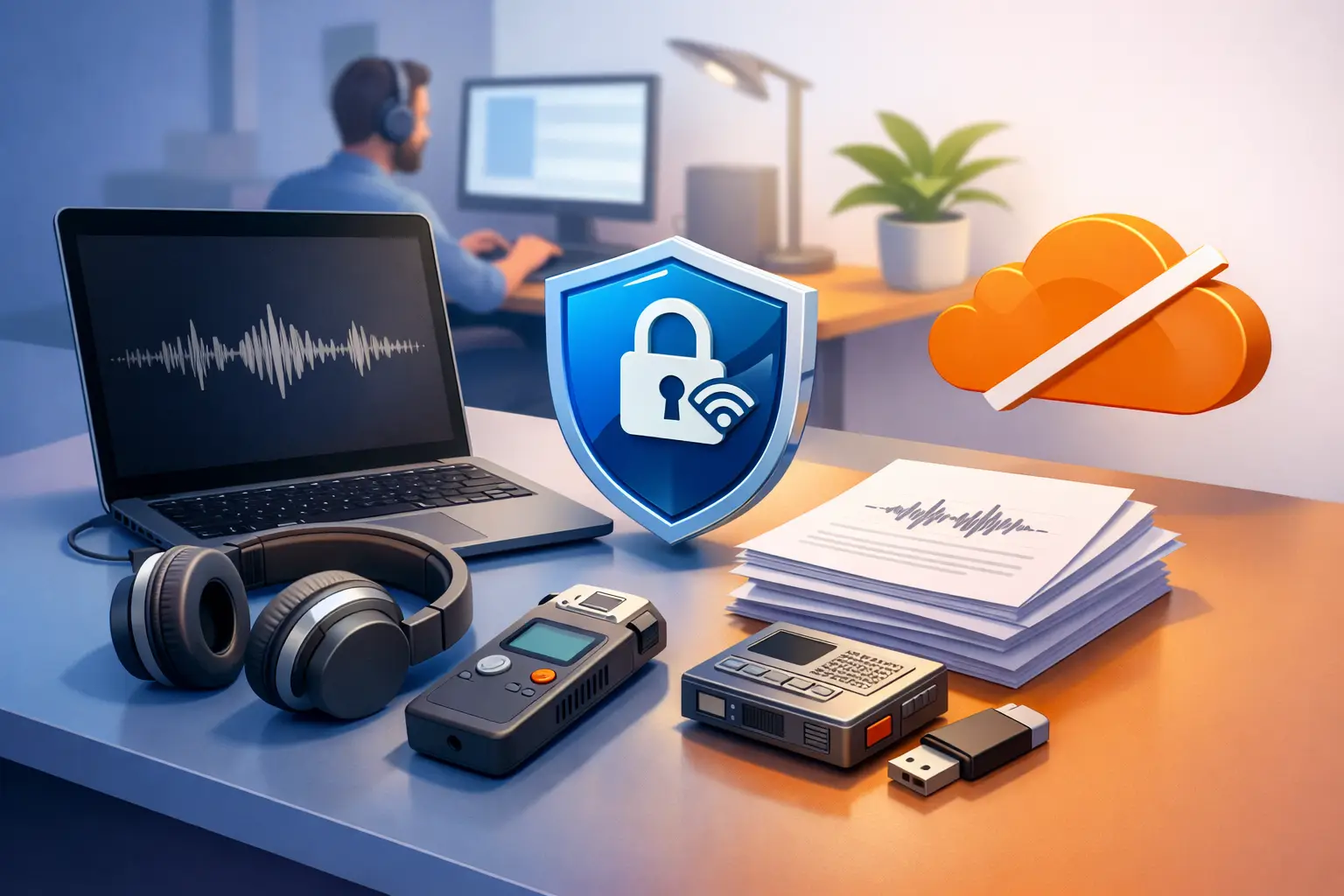
A dead signal should not stop a good idea. If you are interviewing someone on location, reviewing a lecture on a flight, or dictating notes between meetings, offline transcription can keep spoken work moving when Wi-Fi is unavailable, weak, or not an option.
The appeal is simple: record or select audio, turn it into text, and start working. No hunting for a connection. No waiting for an upload to finish before you can see your words.
But offline does not automatically mean better for every recording. The right choice depends on what you are transcribing, how private it is, how much accuracy you need, and what your device can handle.
What offline transcription actually means
Offline transcription converts speech to text without sending your recording to a remote server for processing. The work happens on the device itself, usually inside an app that has downloaded the necessary language models in advance.
That distinction matters. Some transcription apps let you record without internet access but do not create a transcript until you reconnect. Others process short live dictation locally but require internet access for imported audio files. Those are useful workflows, but they are not fully offline transcription.
Before relying on an app for a trip, field assignment, or private meeting, check what works without a connection. Ask whether it can transcribe live speech, recorded files, or both. Also check which languages work offline and whether the feature needs a model download before you leave.
When working offline is the smarter move
For many people, the biggest benefit is continuity. A journalism student can transcribe interview notes on a train. A creator can pull a rough script from a voice memo while traveling. A professional can turn a recorded brainstorm into editable notes before stepping into the next meeting.
Privacy is another reason. Interviews, client calls, health-related notes, internal meetings, and unreleased creative work can contain information you may not want moving through another service. Local processing reduces that exposure because the audio does not need to leave your device to become text.
Offline tools also remove the friction of large uploads. A long lecture or a high-quality audio recording can take time to send, especially on cellular data. If the transcript is generated on your phone, you can begin reviewing it immediately instead of watching an upload bar.
There is a practical cost, though. On-device transcription can use more battery, storage, and processing power. Older devices may work more slowly with long files. If you need to transcribe hours of clean audio at once, a cloud-based service may be faster. Offline is strongest when access, privacy, and speed in the moment matter more than processing massive batches.
Offline transcription is not the same as perfect transcription
A transcript is a working document, not a court reporter. Even strong speech-to-text tools can mishear names, technical terms, acronyms, overlapping speakers, and words buried under traffic, applause, or poor microphone placement.
This is more noticeable offline because local models are often designed to be compact enough for a phone. They may have fewer resources than systems that process audio in large data centers. That does not make offline text unusable. It means you should match the tool to the job.
For a personal voice note, a rough first draft is usually enough. You can turn a spoken outline into paragraphs, find the useful parts, and edit the rest. For a quoted interview, academic research, legal discussion, or client-facing document, plan to review the transcript against the audio before you publish, submit, or share it.
The quality of the recording still does most of the heavy lifting. Clear speech beats clever software every time. Put the microphone close to the speaker, reduce background noise when possible, and avoid recording from across a large room. If several people are talking, ask them not to speak over each other. Those small choices produce cleaner text and less editing later.
A simple workflow that holds up anywhere
The best transcription workflow has very few steps. Capture the audio clearly. Transcribe it where you are. Review the parts that matter. Export the finished text in the format you need.
Start by deciding whether you need live capture or file transcription. Live capture is useful when you want notes while someone is speaking, such as during a lecture, meeting, or dictated draft. File transcription is better when you already have a recorded interview, podcast clip, call, or video and want the full text afterward.
Once the text is ready, do not try to edit every line immediately. First scan for the moments you need: a key quote, a decision, an assignment, a section for a script, or a point you want to study. Then listen back to those sections and correct errors that could change the meaning.
Formatting comes next. Break dense blocks into readable paragraphs. Add speaker names if the recording includes more than one person. Turn action items into short lines. A clean transcript is easier to share, easier to search, and far more useful than a wall of unedited text.
Finally, export it. TXT is ideal when you want plain, lightweight text that can move anywhere. DOCX makes more sense when you need to edit, comment, format, or send the transcript as a working document. The right export format saves a second round of copying and cleanup.
Choose based on the recording, not the feature list
It is easy to get distracted by oversized software suites that promise note-taking, project management, file storage, team chat, and transcription in one place. If your immediate task is converting speech into usable text, most of that adds steps instead of value.
A focused transcription app should make the path obvious: choose a file or use the microphone, wait for the text, clean it up, and export. No complicated setup. No need to build a workspace before you can transcribe a voice memo.
For students, that can mean turning a lecture recording into study notes before the details fade. For journalists, it can mean getting an interview into editable form while still on assignment. For creators, it can mean converting an unscripted recording into a draft without replaying the same clip ten times. For busy professionals, it can mean leaving a meeting with written next steps instead of scattered notes.
The best tool is not necessarily the one with the longest feature page. It is the one that fits the recording in front of you and produces text you can use right away.
What to check before you depend on it
Test offline transcription before the moment you really need it. Download any required language support while you have reliable Wi-Fi, then switch to airplane mode and run a short recording. This shows you exactly what the app can do without a connection.
Pay attention to battery use on a five- or ten-minute sample. Check how much storage the app needs for downloaded models and recorded files. If you work with sensitive audio, review how recordings are stored on the device and remove files you no longer need.
Also test the conditions you actually work in. A quiet desk recording is not the same as a classroom, a coffee shop, a moving car, or an outdoor interview. If the transcript struggles, improve the audio before assuming the tool is the problem.
Keep the transcript useful, not just complete
Offline transcription earns its place when it turns a recording into the next piece of work. That might be a quote ready for an article, a lecture ready for review, a voice note ready to become a draft, or meeting notes ready to send.
Use it for momentum. Capture the words while they are available, shape them while the context is fresh, and keep moving even when the internet is not.