How to Save Dictated Notes as Documents Fast
Learn how to save dictated notes as documents for editing, sharing, and filing. Turn spoken ideas into clean TXT or DOCX files in minutes without rework.
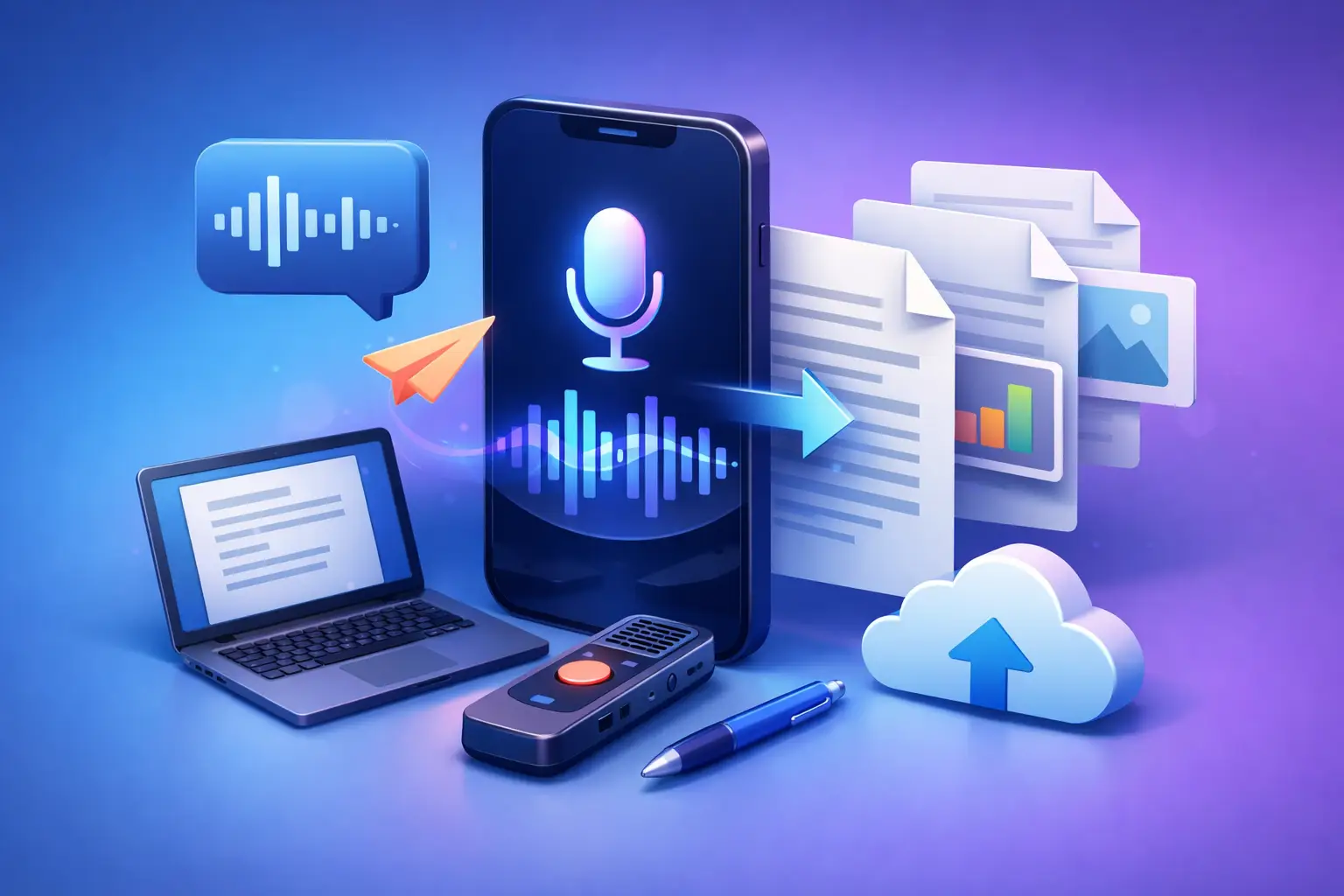
A good idea rarely arrives when a keyboard is convenient. It shows up between classes, after an interview, in the car, or halfway through a walk. The ability to save dictated notes as documents turns that spoken moment into something you can edit, send, search, and use later. No replaying voice memos to find one sentence. No retyping a 20-minute thought.
Dictation works best when it leads somewhere useful. A clean document is that destination. Whether you are capturing lecture notes, drafting an article, recording a meeting recap, or talking through a project plan, the goal is the same: get from voice to usable text with as little friction as possible.
Why save dictated notes as documents?
A voice note is fast to create, but it is hard to work with. You cannot quickly scan it before a meeting, pull a quote from it for a story, or paste part of it into an email. Audio also makes information harder to organize. Once your phone fills with files called “New Recording 12,” useful material becomes difficult to find.
A document fixes that. Text can be revised, highlighted, copied, searched, stored in a project folder, or shared with someone who was not in the room. It also gives your thoughts a second pass. Spoken language is naturally rough. Seeing the words on a page makes it easier to spot repeated points, missing details, and ideas worth developing.
For students, a transcript can become a study guide. For journalists, it can become searchable interview material. For writers, it can be the raw draft that breaks a blank-page stalemate. For professionals, it can be a clear record of next steps after a call.
The key is not to treat dictation as a final product. Treat it as the fastest first draft you have.
A simple way to turn speech into a usable file
The workflow should be short: capture the speech, convert it to text, review it, and export it in the format the next task requires. If the process involves too many screens, naming rules, or settings, you will fall back to typing everything by hand.
Start with one purpose
Before you speak, decide what the document needs to do. A quick label is enough: “client call follow-up,” “history lecture,” “article outline,” or “ideas for episode 12.” Say the label aloud at the beginning if that helps you keep recordings organized.
You do not need to script every sentence. But a purpose gives your dictation shape. It also makes the cleanup faster because you know what belongs in the finished document and what does not.
For longer notes, speak in sections. Pause briefly when you move from background to action items, or from one interview topic to another. You can even say “new section” as a marker. These small habits make the resulting text easier to scan and format.
Capture live speech or use an existing recording
Live dictation is useful when the thought is happening now. Open the microphone, speak naturally, and keep moving. It is especially effective for personal notes, rough drafts, meeting recaps, and post-interview observations.
File transcription is better when the audio already exists. Upload a lecture recording, voice memo, podcast segment, recorded call, or interview file and convert it when you are ready. This keeps the capture stage separate from the editing stage, which is often helpful when you are busy or working with longer recordings.
To The Text is built around this focused path: turn live speech, audio, or video into editable text, then export it without moving through a larger productivity system you do not need.
Review for meaning, not perfection
Transcription saves time, but it should not replace judgment. Names, technical terms, numbers, and jargon deserve a quick check. If an interviewee says a company name that sounds like three other company names, verify it before you publish or share the document.
Keep the review practical. Correct obvious errors, add punctuation where it changes meaning, and break long blocks into readable paragraphs. For a meeting note, make decisions and next steps easy to spot. For a dictated article draft, remove filler phrases and rearrange ideas before polishing sentences.
Do not spend 30 minutes making a rough note look finished if its only job is to remind you what to do tomorrow. The right amount of cleanup depends on where the document is going.
Choose TXT or DOCX based on the next step
When you save dictated notes as documents, the export format matters. TXT and DOCX serve different jobs.
A TXT file is simple, lightweight, and widely compatible. Choose it when you need plain text for a notes app, a writing tool, a content management system, or a quick archive. It is also a smart option when formatting does not matter and you want the smallest possible file.
A DOCX file is better when the note will be edited, reviewed, printed, or sent to someone else. It preserves a more document-like structure and is useful for meeting notes, class materials, interview transcripts, drafts, and internal reports. You can open it in common word processors and add headings, comments, tables, or tracked changes later.
There is no universal winner. Export to TXT when speed and portability matter most. Export to DOCX when the text needs to become a polished working document. If the note has long-term value, use a descriptive filename before filing it away. “Marketing interview - June 12” is useful. “Audio transcript final final” is not.
Build a document habit that keeps notes findable
The real value of dictated notes grows over time. One transcript is useful. A searchable library of lectures, interviews, ideas, and decisions is better.
Use a consistent filename pattern. Start with the date if you sort files chronologically, then add the subject. For example: “2026-08-04 project kickoff notes” or “2026-08-04 biology lecture cell division.” Keep the format plain enough that you will actually use it.
Store documents by active area of work, not by every possible category. A student may need folders for each class. A creator may need folders for episodes, sponsors, and content ideas. A consultant may organize by client and project. Too many folders create the same problem as too many apps: more places to lose the file.
For recurring work, make the first lines of each document predictable. A meeting note can begin with the date, attendees, decisions, and action items. An interview transcript can begin with the guest name, recording date, and subject. A dictated draft can start with a working title and the core point. Structure reduces cleanup later.
Dictation works differently for different kinds of notes
A student recording a lecture should focus on the parts the instructor emphasizes, not attempt to narrate every slide. Speak a short recap immediately after class while the context is fresh, then save the transcript with the course materials. That recap often becomes more valuable than the full recording during exam week.
A journalist should record the interview clearly, then create a document that is easy to search for quotes and facts. Keep the transcript close to the original during verification. After that, create a separate working document for selected quotes, themes, and follow-up questions. Mixing raw source material with draft writing invites mistakes.
A content creator can dictate hooks, outlines, captions, and script revisions while away from a desk. The best approach is to keep each idea in its own document rather than one massive “content ideas” file. Individual files make it easier to develop one concept without losing it in a pile of unrelated thoughts.
Working professionals can use a short post-meeting dictation to capture what happened before the details fade. State the decision, owner, deadline, and open question. Then export a DOCX file if the note needs review, or a TXT file if it simply belongs in a project archive.
Common mistakes that slow the process down
The first mistake is waiting for perfect conditions. A quiet room helps, but it is not always available. If the thought is time-sensitive, capture it first and review the text later. Clear speech and a close microphone usually matter more than a studio-quality setting.
The second is trying to edit while speaking. Dictation is faster when you keep the momentum. If you misspeak, correct yourself once and continue. Repeatedly restarting sentences creates a messy recording and interrupts the idea you were trying to capture.
The third is exporting without a destination. A document on your phone is only half-finished if you cannot find it when you need it. Name it, choose its folder, and decide whether it is reference material, a task, or a draft. That takes seconds and prevents a frustrating search later.
Finally, do not assume every transcript needs the same level of accuracy. A private brainstorm can stay rough. A legal, academic, published, or client-facing document needs a closer review. Match the effort to the consequence of getting a word wrong.
Your best notes do not need to begin as polished writing. Speak the idea while it is alive, turn it into text, and give it a place where tomorrow's version of you can act on it.